
Help & support
Frequently asked questions
Everything you need to know about ordering, downloading, printing and using Fabrico PDF sewing patterns.
Payment & orders 3 questions
Yes. All payments on Fabrico are securely handled by Stripe — a globally trusted service with strong encryption and fraud protection. Your card details are never exposed.
After payment, you'll receive an electronic receipt by email.
You can pay with a debit or credit card (Visa, MasterCard, American Express), or use iDEAL, Bancontact, EPS, or Przelewy24.
Choose your pattern and size, add it to your cart, and proceed to checkout. First-time buyers create a quick account with email and password — your patterns will be saved both in your email and in your personal account.
Right after payment, you'll see a Thank-you page with direct download links — your pattern is ready immediately.
All your orders are also saved in your account on the Fabrico website. Just log in any time to access them.
Account & email 2 questions
No worries — it happens. Go to the Login page, click "Lost your password?" and enter the email you used when signing up. We'll send reset instructions.
If you still have trouble, drop us a line at [email protected].
Check your Spam or Junk folder — order confirmations, receipts and password resets sometimes end up there.
If they're being filtered, adjust your spam settings to allow messages from Fabrico. Still nothing? Write to [email protected].
Printing patterns 4 questions
Download the PDF to your device first, then send it to your printer. Printing directly from the browser sometimes fails — saving locally usually fixes it.
If the issue persists, write to [email protected].
Always start with a test print of the first page only — it contains a test square.
In your printer settings:
- Select A4 paper size
- Set the page range to "1"
- Choose 100% scale (some printers default to 95% — double-check!)
Once printed, measure the test square — it should be exactly 10 × 10 cm. If correct, use the same settings for all the other pages.
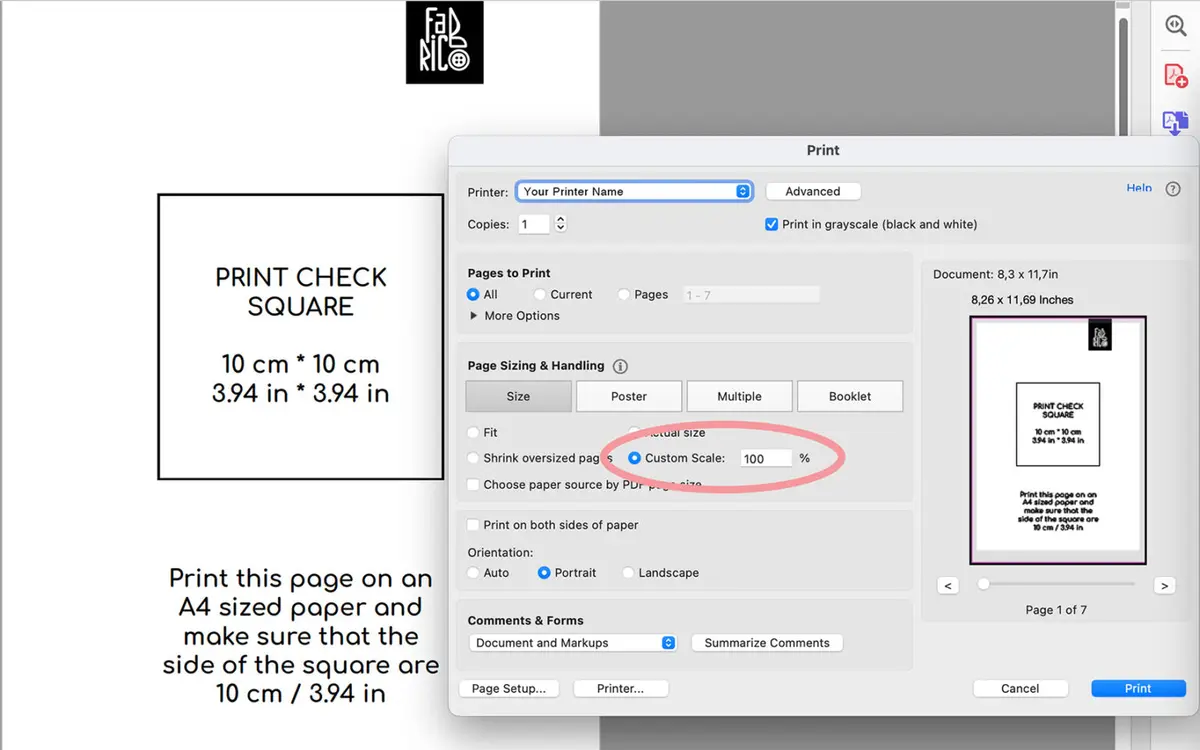
The issue is almost always with printer settings. Many printers default to 95%, which produces a 9 × 9 cm square — too small.
Set the scale to exactly 100%. If it's already at 100% but the square is still off, your PDF reader may not be applying the setting — adjust the scale manually until the printed square measures exactly 10 × 10 cm.
Quick checkIf your square is 9.5 cm, try setting scale to ~105%. Reprint and re-measure until it's exactly 10 cm.
Each page is numbered. Lay them out in order following the assembly diagram included with your pattern.
Trim off the blank edges, then join the pages with tape or glue. That's it — you're ready to cut your fabric.
Sizes & files 3 questions
Our patterns use RU sizes, but we provide a conversion table for international sizes. See the Adults size chart or Kids size chart to find your perfect fit.
Choose your size based on your bust and hip measurements for the best fit.
Pattern sets come as zipped files (.zip or .rar) to keep everything organized.
- Download the file to your computer.
- Right-click the file and select "Extract Here" or "Extract To".
Zipped files can only be opened on a computer — they won't work on smartphones or tablets.
If something doesn't open as expected, write to [email protected].
More resources
Other things you might need
Quick links to the guides and references most often used alongside this FAQ.
Adults size chart RU to international size conversion Kids size chart Sizing for ages 12 months and up How to print Step-by-step A4 printing guide Learning hub Articles, tips and sewing techniques